
A modern, compact desktop audio player for Windows 11, built with WinUI 3 and .NET 10.


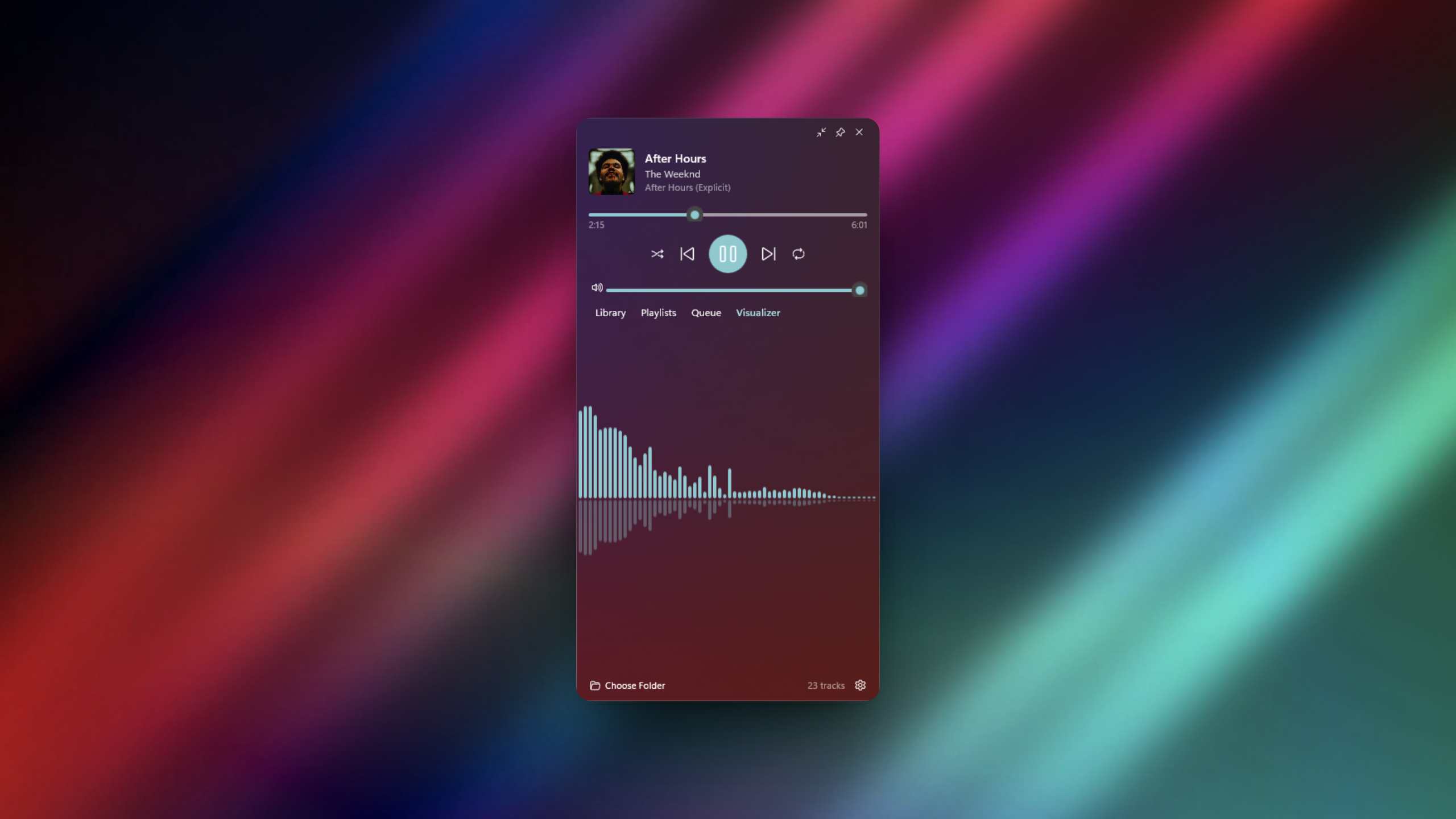
- NAudio-powered engine — all file playback routed through NAudio (WASAPI) with equalizer processing; MediaPlayer used for radio streams
- Supported formats: MP3, FLAC, WAV, OGG, AAC, WMA, M4A, OPUS, APE, AIFF
- Playback controls: Play/Pause, Previous, Next, timeline seeking
- Volume control with mute toggle and dynamic icon states
- Shuffle (Fisher-Yates) and Repeat modes (None / All / One)
- Gapless playback — seamless track transitions with pre-loaded next track chain; automatic fallback for incompatible formats
- BPM detection — reads BPM from file tags or analyzes audio on demand (multi-band onset detection + comb filter); displayed in track list and sortable
- Playback speed — adjustable from 0.25x to 4x with 9 presets, applied to both local files and streams
- Sleep timer — auto-stop playback after 15, 30, 45, 60, or 90 minutes, accessible from the settings menu
- Add folders and recursively scan for audio files
- Automatic metadata extraction (title, artist, album, genre, track number, year, duration, artwork)
- File hash-based deduplication
- Background async scanning with progress reporting
- SQLite-backed persistent storage
- Create, rename, and delete playlists
- Add/remove tracks and reorder within playlists
- Quick "Add to Playlist" from any track context menu
- Import/Export — import and export playlists in M3U/M3U8 and PLS formats; relative paths resolved automatically, tracks matched case-insensitively against the library
- Add tracks to queue (end or next)
- Reorder tracks via up/down buttons
- Clear queue or remove individual items
- Queue state persisted across sessions (
queue.json)
- Listen to online radio — enter any HTTP/HTTPS stream URL to play live radio
- Station management — rename and delete saved stations via Raycast-style context menu
- Persistent stations — saved to
radio_stations.json, restored on next launch - Live indicator — timeline shows "LIVE" with disabled seek bar
- Smart transport controls — shuffle, repeat, previous, and next are disabled during radio playback
- Visualizer support — real-time WASAPI loopback spectrum analysis for live streams
- Search podcasts — discover podcasts via the iTunes Search API
- Subscribe — add podcasts to your subscription list, persisted across sessions
- Episode browsing — view episode list with title, date, duration, and description
- Direct playback — play any episode directly in the built-in player
- Read/unread tracking — episodes automatically marked as read when fully listened
- Manual toggle — mark episodes as read or unread via Raycast-style context menu
- Episode downloads — download episodes for offline listening (stored in
%LOCALAPPDATA%\Audiomatic\podcasts\), with cancel and delete options - Smart playback — downloaded episodes play via NAudio with full equalizer and seeking support; non-downloaded episodes stream directly
- Playback resume — episode progress saved automatically and restored on next play
- Unread badges — subscription cards show the number of unread episodes
- Subscription management — unsubscribe from podcasts via context menu
- 10-band graphic equalizer — adjustable gain per band (-12 to +12 dB) at 32, 64, 125, 250, 500, 1k, 2k, 4k, 8k, and 16k Hz
- Presets — Flat, Bass Boost, Treble Boost, Rock, Pop, Jazz, Classical, Electronic, Hip-Hop, Vocal
- Preamp control — global gain adjustment (-12 to +12 dB)
- Enable/disable toggle — bypass the equalizer without losing your settings
- Persistent settings — band gains, preset, preamp, and enabled state saved across sessions
- Real-time filtering by title, artist, or album
- Sort by Title, Artist, Album, Duration, or BPM
- Ascending/Descending toggle
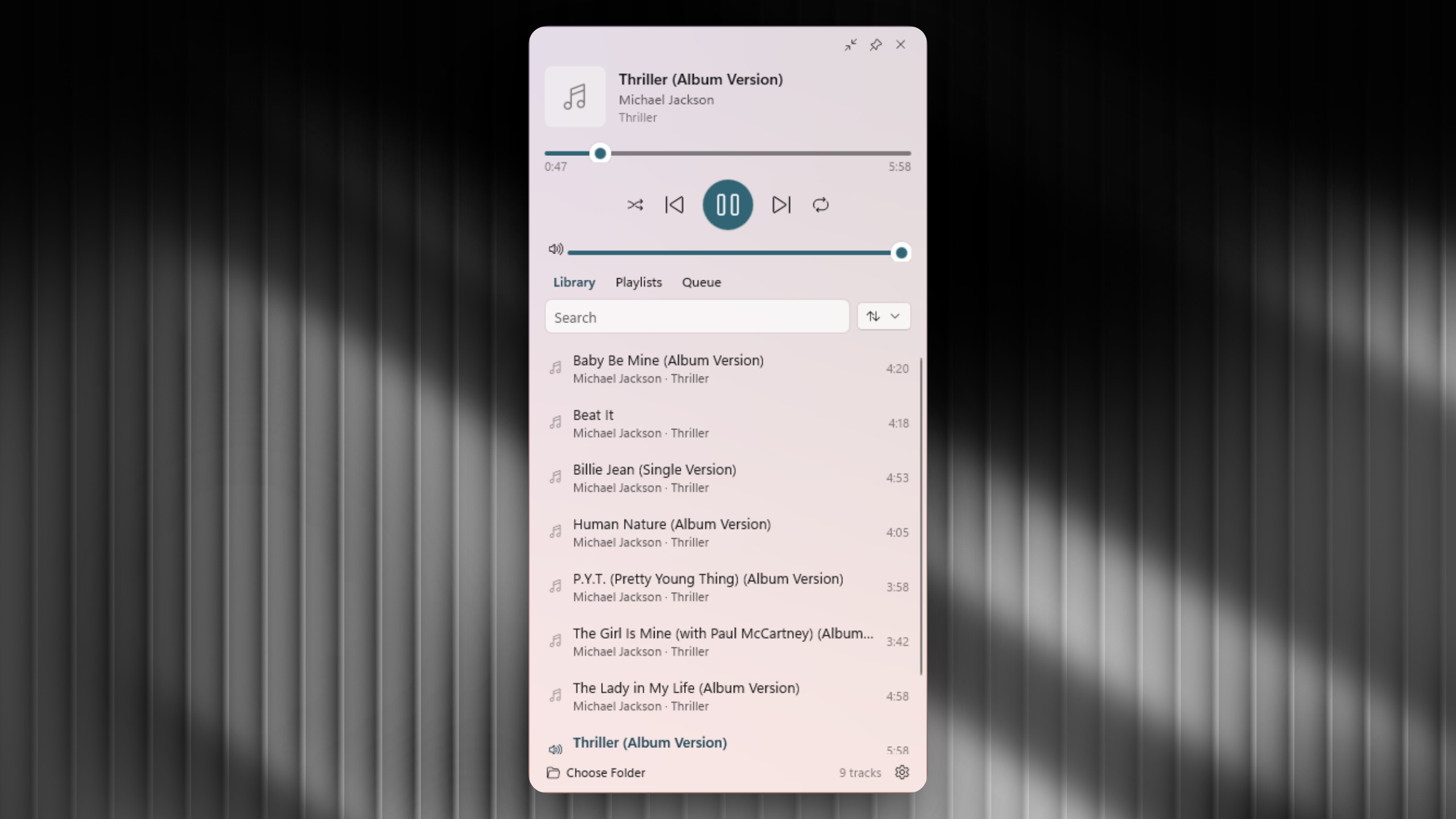
- Mark/unmark tracks as favorites
- Persisted in the local database
| View | Description |
|---|---|
| Library | Browse all tracks with search and sort controls |
| Playlists | Manage playlists and view track counts |
| Playlist Detail | View and reorder tracks within a playlist |
| Queue | View and manage the current playback queue |
| Radio | Play online radio streams with station management |
| Podcasts | Search, subscribe, browse episodes, and play podcasts |
| Albums | Browse library grouped by album with artwork cards |
| Artists | Browse library grouped by artist with circular artwork cards |
| Equalizer | 10-band graphic EQ with presets, preamp, and per-band control |
| Visualizer | Real-time FFT spectrum analyzer with mirror mode (via "..." menu) |
| Stats | Play history, top tracks, top artists, and total listening time |
| Media Control | Monitor and control background media players via "..." menu |
- Inline tag editing — edit title, artist, and album directly from the track context menu
- Artwork management — change cover art from file (JPG/PNG) or remove existing artwork
- Writes tags back to the audio file via TagLibSharp
- Automatically updates the library database and current playback display
- Background media monitoring — detect and display all active system media sessions
- Per-session cards — thumbnail, app name, title, artist for each media source
- Playback controls — play/pause, previous, next per session
- Timeline scrubbing — seek within tracks with real-time position and duration display
- Live updates — automatically refreshes when sessions start, stop, or change tracks
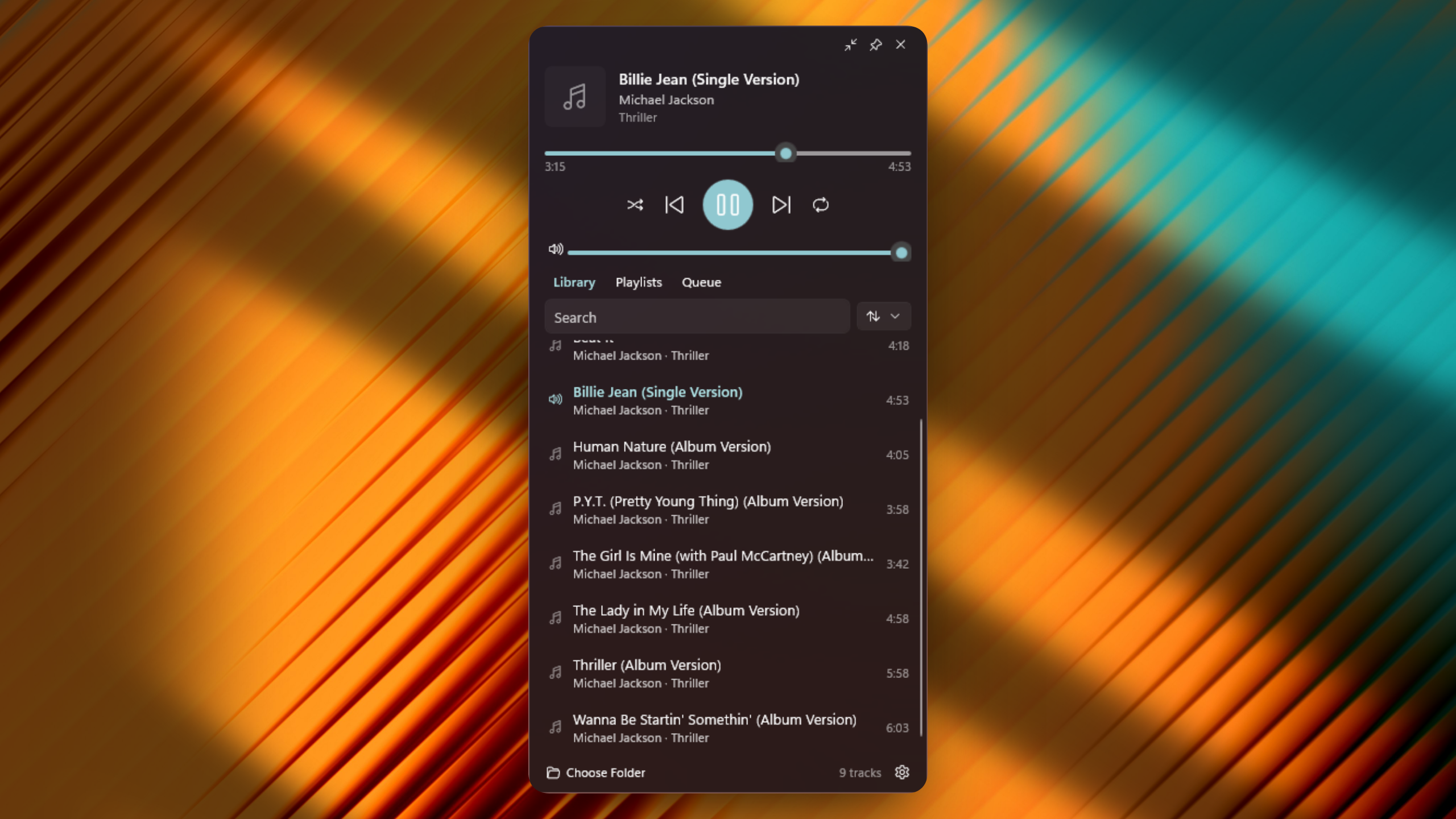
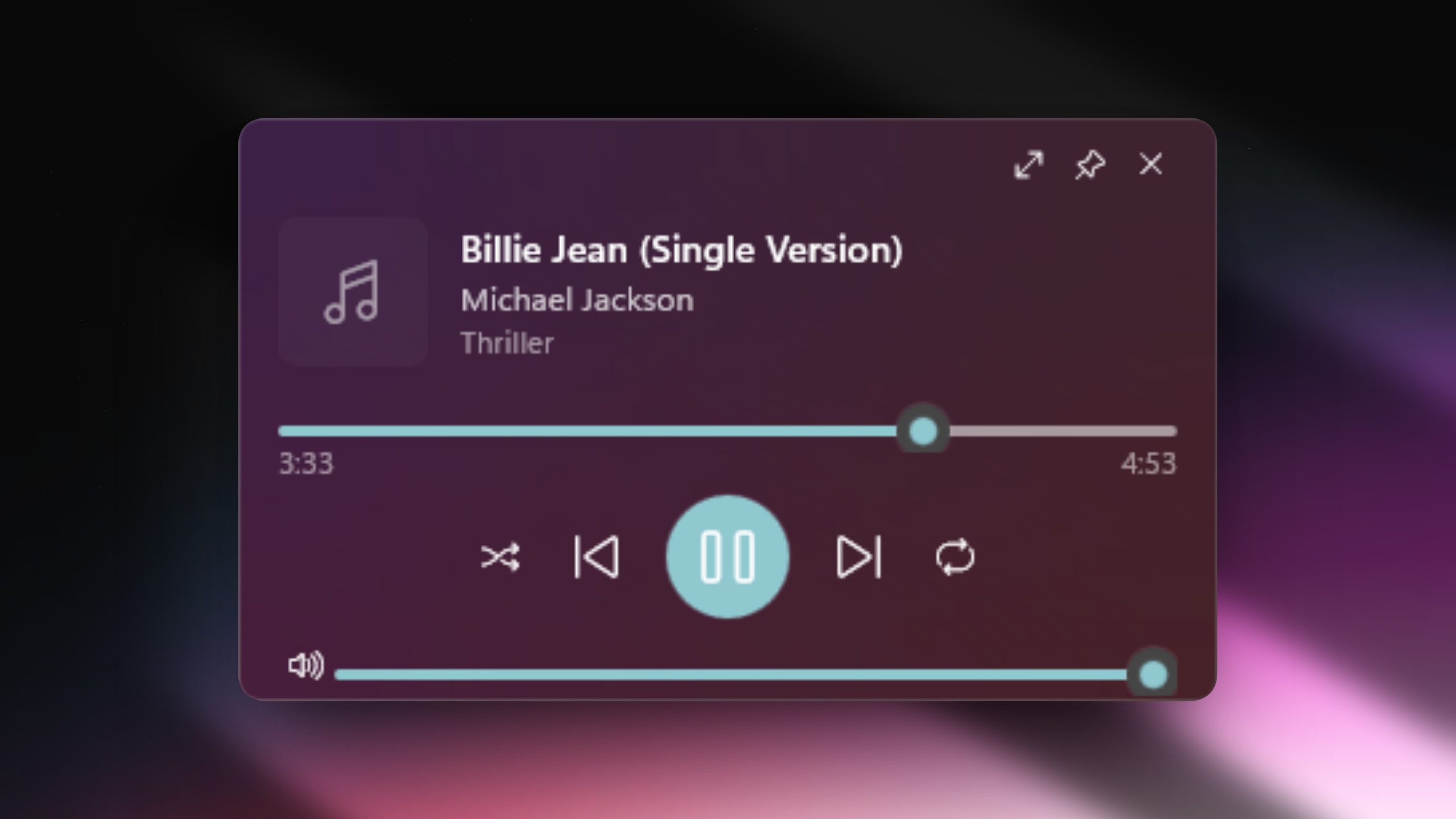
- Floating mini-player — a borderless, always-on-top overlay window for quick playback control without opening the main app
- Compact layout (320×78 px) — album art, track title & artist, progress bar, and transport controls (previous, play/pause, next, close)
- Drag to reposition — move freely anywhere on screen; position persists across restarts
- Acrylic backdrop — translucent background with frameless design (stays visible when unfocused)
- Real-time sync — artwork, progress, and play state update live from the main player
- Toggle from the settings menu or via keyboard shortcut
- Play tracking — every play longer than 10 seconds is recorded with duration
- Top tracks — most-played tracks ranked by play count
- Top artists — most-listened artists ranked by total listening time
- Total listening time — aggregate across all sessions
- Three display modes — Expanded (710px), Compact (220px), and Mini-player (60px)
- Mini-player — ultra-compact mode showing album art, track info, and play/pause button
- Overlay widget — detached floating mini-player (see above)
- Animated transitions — Fluent slide+fade animations between views
- Collapse cycling with smooth animation anchored to bottom (
Ctrl+L) - Always-on-Top pin mode
- Backdrop options: Acrylic, Custom Acrylic (tint/fallback with ColorPicker, luminosity, Base/Thin style), Mica, Mica Alt, None
- Theme support: System, Light, Dark
- Custom accent colors — 24 preset color swatches + custom hex input, applied across all themes
- Window position remembered across restarts
- Custom draggable title bar
- Raycast-style context menus for tracks, playlists, and queue items
- Draggable tab reordering — rearrange navigation tabs by drag & drop; custom order persisted across sessions
- System tray — minimize to tray, left-click to show/hide, right-click menu
- System Media Transport Controls (SMTC) — play/pause, next/previous, track info and artwork displayed in Windows media overlay; disables automatic command handling to prevent conflicts with other media apps
- Drag & Drop — drop audio files from Explorer to play or queue them, or drop folders to add them to the library
- Global hotkeys:
Ctrl+Alt+M— Show/Hide windowCtrl+L— Cycle display modes (Expanded → Compact → Mini → Expanded)Space— Play/Pause (when not searching)Escape— Close window
- Library management (add folders, rescan, reset)
- Backdrop and theme selection
- Custom accent color picker (24 presets + hex input)
- Display mode cycling and pin-on-top toggles
- Equalizer configuration (bands, presets, preamp)
- Visualizer FPS selection (30 / 60 FPS) and mode (classic, bars, circle, wave) with glow and dark background toggles
- Overlay widget toggle (show/hide floating mini-player)
- All preferences persisted in
settings.json
| Component | Technology |
|---|---|
| Framework | WinUI 3 (Windows App SDK 1.8) |
| Language | C# / .NET 10.0 |
| Audio | Windows MediaPlayer + NAudio 2.2.1 (WASAPI) |
| Graphics | Microsoft.Graphics.Win2D 1.4.0 |
| Metadata | TagLibSharp 2.3.0 |
| Database | Microsoft.Data.Sqlite 10.0.5 |
| Target | Windows 10.0.19041.0+ |
All application data is stored in %LOCALAPPDATA%\Audiomatic\:
library.db— SQLite database (tracks, playlists, favorites, folders)settings.json— User preferencesqueue.json— Current queue stateradio_stations.json— Saved radio stationspodcasts.json— Podcast subscriptionspodcast_read.json— Read/unread episode trackingpodcast_progress.json— Episode playback progress for resumepodcasts/— Downloaded podcast episodesplay_historytable — Track play counts and durations (inlibrary.db)
dotnet build Audiomatic.sln -c ReleaseThe app uses a lightweight dictionary-based i18n system (Audiomatic/Strings.cs). English and French are included out of the box. To add a new language:
-
Add translations in
Strings.cs— append your language code to each entry in theTranslationsdictionary:["Library"] = new() { ["en"] = "Library", ["fr"] = "Bibliothèque", ["de"] = "Bibliothek" },
-
Add the language option in
MainWindow.xaml.cs— find the// Language sectionblock insideShowSettingsFlyout()and add a line:AddLanguageOption("de", Strings.T("German"));
-
Add the language name translations in
Strings.csso it displays correctly in every language:["German"] = new() { ["en"] = "German", ["fr"] = "Allemand", ["de"] = "Deutsch" },
The fallback chain is: requested language → English → raw key. Missing translations for a given key will gracefully fall back to English.
All rights reserved.